

A canonical tag is a small piece of code that tells Google which version of a page is the main one when the same content lives at more than one web address. In canonical tag SEO, that main version is called the canonical URL, and it’s the one Google will try to show in search results. If Google ever shows the messy version of your page — the one full of tracking codes — instead of the clean one, a missing or wrong canonical tag is usually the reason.
The good news? This is one of the simplest technical SEO fixes there is. No developer needed, and on WordPress you probably won’t touch any code. Sixty seconds from now, you’ll understand the whole idea — and by the end, you’ll know how to check yours.
Canonical Tag SEO Basics: One Tag, One Main Version
Picture a bakery with three shopfronts on the same street, all selling the same cakes under one name. Customers get confused about which shop is real, and reviews split across all three. A canonical tag is a sign on two of those shopfronts saying, “The real shop is that one over there.”
Technically, it’s one line of code in the <head> of a page: <link rel="canonical" href="https://www.example.com/services/" />. Every duplicate version carries a tag pointing to the same main URL — and the main page itself should carry a tag pointing to itself, a self-referencing canonical that removes any doubt about which version you prefer.
One honest caveat: Google treats your canonical tag as a strong hint, not a command. It weighs the tag alongside redirects and sitemaps, and can occasionally pick a different URL anyway. A clear, consistent setup simply makes Google agree with you far more often.
How Do Duplicate Pages Happen in Real Life?
Most owners hear “duplicate content” and think, “I never copied anything, so this isn’t my problem.” But duplicates are usually created by your own website without you noticing:
- Tracking links — a newsletter link gains a tail like
?utm_source=newsletter. Same page, new address. - www versus non-www — your site answers at both versions. To visitors they’re identical; to Google they’re two pages.
- HTTP versus HTTPS — the old unsecured version still loads alongside the secure one, doubling every page.
- Trailing slashes —
/servicesand/services/can count as separate URLs. - Product filters — “sort by price” or colour filters spawn dozens of addresses for one product list.
- Print pages — some themes still generate a separate printable version of every page.
This isn’t a penalty — Google says some duplication is normal. The cost is quieter: split ranking signals, messy analytics, and Google showing the ugly tracked URL instead of your clean one.
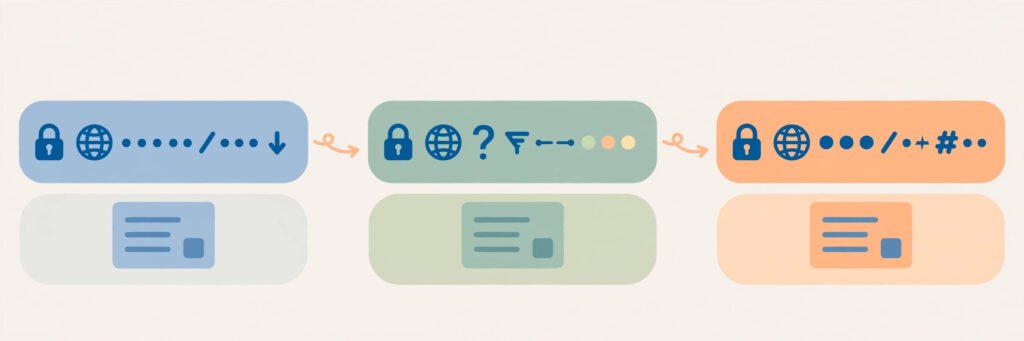
Canonical vs 301 Redirect vs Noindex: Which Do You Need?
All three tools deal with pages you don’t want Google treating as separate. The difference is one question: should the duplicate page still exist for visitors?
- Canonical tag — the duplicate still needs to exist (tracked link, filtered list, print page). Keep it, and point Google at the main version.
- 301 redirect — the old page is gone for good. Visitors get sent to the new address automatically, and Google treats a permanent redirect as an even stronger canonical signal than the tag.
- Noindex — the page should never appear in Google at all (thank-you page, staff page, staging copy). Google recommends a canonical over noindex when your goal is just picking a preferred version, because noindex removes the page rather than consolidating its signals.
Remember it this way: canonical says “this page counts, but that one is the main version”; a redirect says “this page has moved”; noindex says “pretend this page doesn’t exist.” Unsure? Ask whether a real visitor still needs the duplicate address — yes means canonical, no means redirect. See also our guides to duplicate content and 301 vs 302 redirects.

How to Add a Canonical Tag (WordPress Takes Two Minutes)
If your site runs WordPress with Yoast SEO, you may already have canonical tags without knowing it — Yoast adds a self-referencing canonical to every page automatically. You only step in when a page’s main version should be a different URL: open the page, find the Yoast panel, click Advanced, and paste the full main URL into “Canonical URL.” One field, done.
A few rules keep the tag working: always use the full absolute URL, never a relative path; match your preferred version exactly (same HTTPS, same www choice, same trailing-slash habit everywhere — mixed signals are the top reason Google overrules a canonical); point at a live, indexable page; use one canonical per page, since two conflicting tags cancel each other out; keep it in the <head>, where Google accepts it; and list only canonical URLs in your sitemap, which is itself a weak canonical signal. Google’s own guide to consolidating duplicate URLs is the definitive reference if your developer wants the full specification.

5 Mistakes That Silently Break Canonical Tags
- Pointing to the wrong version — canonical says HTTP while the site serves HTTPS, or www while the site prefers non-www. Google spots the mismatch and picks its own winner.
- Canonical chains — page A points to B, and B points to C. Google wants one direct answer, not a treasure hunt. Point every duplicate straight at the final main URL.
- Canonicals on genuinely different pages — a canonical is only for identical or near-identical content. Pointing a category page at your homepage just gets the tag ignored.
- Letting JavaScript change the tag — the canonical in the final rendered page must be the right one. Safest is a tag in the HTML the server sends.
- Forgetting the check — theme updates, plugin changes, and redesigns break tags silently. A canonical set two years ago may not be the one your site serves today.
And remember: fixing a canonical doesn’t change Google’s mind overnight — Google may keep a page in its duplicate group for up to a couple of weeks.
The 5-Minute Canonical Check Anyone Can Do
You need no paid tools. Open any page, right-click, choose “View page source,” and search for canonical. You should find exactly one tag, pointing at the clean URL you’d want a customer to see. Repeat for your homepage and one service page.
Then open Google Search Console, go to URL Inspection, and paste a duplicate-looking URL — the tracked newsletter link, for example. The report shows both the canonical you declared and the one Google actually selected. If they match, you’re done. If Google chose a different canonical, work through the five mistakes above, starting with mismatched signals like HTTP versus HTTPS.
Finally, peek at Search Console’s Page indexing report. Statuses like “Duplicate without user-selected canonical” show where Google is still guessing. Fix the template once, and dozens of pages can clear up together — which is why canonical work pairs so well with smart internal linking, the other quiet multiplier most small sites ignore.
Conclusion
Sixty seconds ago, a canonical tag was probably jargon you’d heard but never pinned down. Now you know: one line of code telling Google which version of a page is the main one, stopping your ranking signals splitting across duplicates — and on WordPress, often already handled for you. Check yours today. If it’s right, you’ve confirmed a piece of technical SEO most competitors never look at. If it’s wrong, you’ve found one of the cheapest ranking wins on your whole site.
Canonical tag SEO works by adding a link element to a page’s head section that names the preferred URL for a group of duplicate or near-identical pages. Google treats the tag as a strong hint, groups the duplicates together, and tries to show the canonical URL in search results while consolidating ranking signals behind it.
Yes, every indexable page should have a canonical tag, even if it simply points to itself. A self-referencing canonical removes all doubt about which version of a page is the main one, and it protects the page automatically if a duplicate copy appears later through tracking links or site changes.
No, a canonical tag will not fix a Google penalty, because duplicate URLs are not usually a penalty issue at all. Duplicate content is normally just filtered, with Google choosing one version to show. A canonical tag fixes which version gets shown and consolidates ranking signals; real penalties need their own diagnosis and recovery work.
Use a canonical tag when the duplicate page still needs to exist for visitors, such as a tracked campaign link or a filtered product list. Use a 301 redirect when the old page is permanently gone and visitors should be sent to the new address automatically, since a redirect is an even stronger canonical signal than the tag.
Open Google Search Console, go to URL Inspection, and paste the URL you want to check. The report shows the user-declared canonical from your tag and the Google-selected canonical side by side. If they match, your canonical setup is working; if Google chose a different canonical, check for mismatched signals like HTTP versus HTTPS or conflicting redirects.
Pingback: Sitemap.xml: What It Is and Why Google Needs It - Silver Crown Star Marketing